
SDK Documentation
1. Getting Started
In order to add AadhaarAPI Android SDK, you need to have following things:
- Android Studio.
- SDKfile (.aar format).
NOTE: Please drop an email to [email protected] for registration. SDK file and API key provided to you after registration.
2. Android Studio Setup
To add SDKfile as library in your Project. To add it as library, perform the following steps shown below:
A. Right click on your project and choose “Open Module Settings”.

B. Click the “+” button in the top left to add a new module.
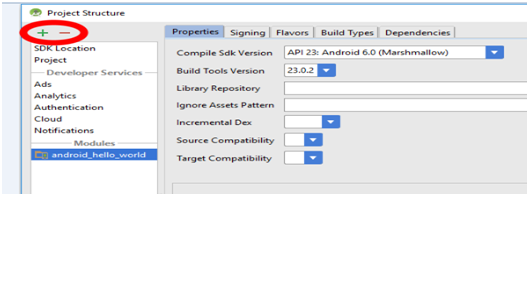
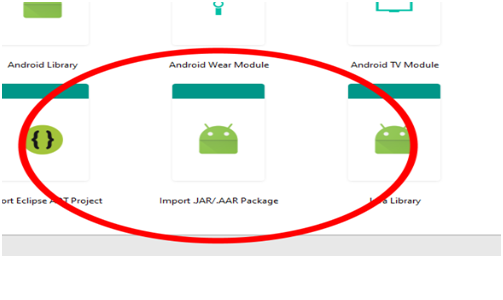
C. Choose “Import .JAR or .AAR Package” and click the “Next” button.
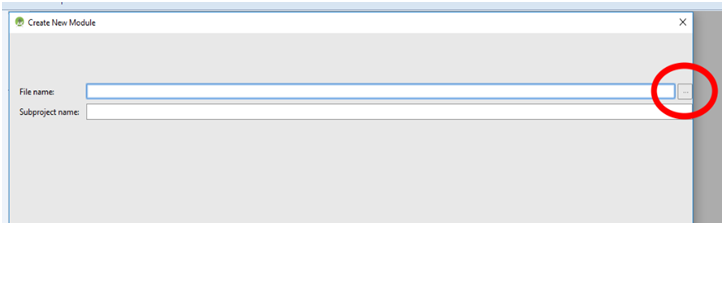
D. Find the AAR file using the ellipsis button (“…”) beside the “File name” field.
E. Keep the app’s module selected and click on the Dependencies pane to add the new module as a dependency.
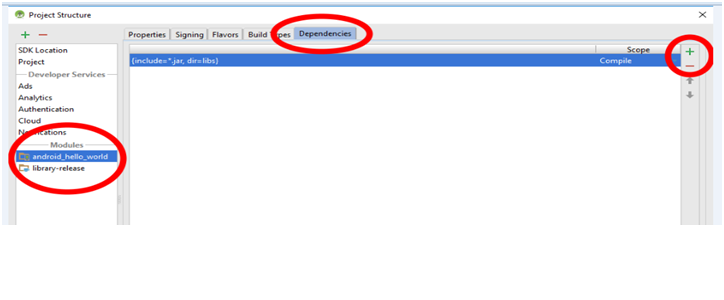
F. Use the “+” button of the dependencies screen and choose “Module dependency”.
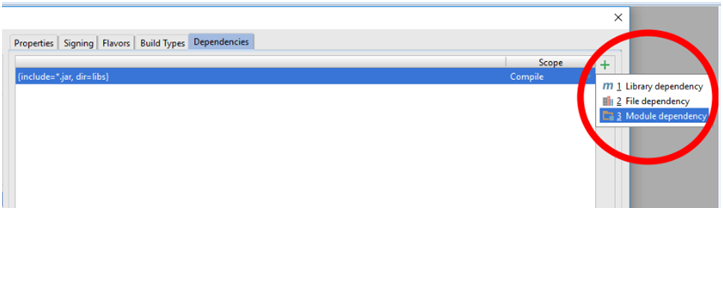
G. Choose the module and click “OK”.

3. Adding Dependencies
A. Add the below dependencies to build.gradle of your “app” module folder (not to your project root build.gradle):
compile ‘com.google.android.gms:play-services:9.6.1’
compile ‘com.android.volley:volley:1.0.0’
compile ‘org.lucee:bcprov-jdk15on:1.52.0’
B. Create folder and name it as ‘assets’ (app/src/main/assets). Copy the UIDAI CERTIFICATE provided to you in it.
C. Add Below Strings in ‘strings.xml’ file (res/values /strings.xml):
<string name="agency_name">agency_name</string>
<string name="api_base_url">api_base_url</string>
<string name="api_key">your_API_Key</string>
<string name="agency_service_name">your_service_name</string>
<string name="uidai_certificate">uidai_certificate.cer</ string >
<string name="env">environment_value</ string >
<string name="mobile_email_required">Y</string>
Params:
- agency_name: Your Company name
- api_base_url: Base URL provided to you after registration.
- api_key: API key provided to you after Registration
- agency_service_name : The service provided by your company that is going to use this E-KYC/Auth information.
- uidai_certificate: Name of UIDAI’s public .cer file being used. keep .cer in the name.
- mobile_email_required : If mobile and email are required please make this Y, else N. This will add a consent text on consent page in SDK for the resident to provide mobile & email data.
F. Clean and rebuild the project.
4.Using ‘.aar’ In Your App
A. To use SDK, import following files in your activity:
import quagga.com.quagga_otp.ConsentActivity;
import static quagga.com.quagga_otp.Utilities.ConstantsUtil.KEY_ACTIVITY_RESULT;
import static quagga.com.quagga_otp.Utilities.ConstantsUtil.KEY_ADHAAR_KEY;
import static quagga.com.quagga_otp.Utilities.ConstantsUtil.KEY_REQUEST_TYPE;
import static quagga.com.quagga_otp.Utilities.ConstantsUtil.RESULT_ERROR;
NOTE:
- For OTP you may use the following Import statements:
- You may use Import depending upon the request type i.e. (AUTH/EKYC)
import static quagga.com.quagga_otp.Utilities.ConstantsUtil.REQUEST_FOR_OTP;
import static quagga.com.quagga_otp.Utilities.EnumRequestType.OTP_EKYC;
import static quagga.com.quagga_otp.Utilities.EnumRequestType.OTP_AUTH;
NOTE:
- For FingerPrint you may use the following Import statements:
- Use Import depending upon the request type i.e. (AUTH/EKYC)
import static quagga.com.quagga_otp.Utilities.ConstantsUtil.REQUEST_FOR_BIOMETRIC;
import static quagga.com.quagga_otp.Utilities.EnumRequestType.FINGER_EKYC;
import static quagga.com.quagga_otp.Utilities.EnumRequestType.FINGER_AUTH;
B. Then call ‘ConsentActivity.class’fromyour Activity.
Intent intent = new Intent (getApplicationContext(), ConsentActivity.class);
C. Here, pass Resident’s or Customer’s Aadhaar Number in place of ‘AadhaarNumber’.
intent.putExtra (KEY_ADHAAR_KEY, AadhaarNumber);
D. For calling OTP Request, pass the OTP RequestType i.e. OTP_AUTH or OTP_EKYC:
intent.putExtra(KEY_REQUEST_TYPE, OTP_AUTH.getAgency_service_name ());
startActivityForResult (intent, REQUEST_FOR_OTP);
E. For calling FingerPrint Request, pass the FingerPrint RequestType i.e. FINGER_AUTH or FINGER_EKYC:
intent.putExtra (KEY_REQUEST_TYPE, FINGER_AUTH.getAgency_service_name ());
startActivityForResult (intent, REQUEST_FOR_BIOMETRIC);
F. For OTP, Result data can be obtained from ‘onActivityResult()’ method as shown:
// handle result from SDK
    @Override
    protected void onActivityResult(int requestCode, int resultCode, Intent data) {
        /*
            Handle result for OTP
            - Remove if OTP is not being used
         */
        if (requestCode == REQUEST_FOR_OTP && null != data) {
            String requestType = data.getStringExtra(KEY_REQUEST_TYPE);
            /*
                Handle result for EKYC
                - Remove if only Auth is used in your App
             */
            if (requestType.equalsIgnoreCase(OTP_EKYC.getAgency_service_name())) {
                if (resultCode == RESULT_OK) {
                    String successString = data.getStringExtra(KEY_ACTIVITY_RESULT);
                    //handle success for otp_ekyc
                    response.setText(successString);
                }
                if (resultCode == RESULT_ERROR) {
                    String errorString = data.getStringExtra(KEY_ACTIVITY_RESULT);
                    //handle error for otp_ekyc
                    response.setText(errorString);
                }
            }
            /*
                Handle result for AUTH
                - Remove if only EKYC is used in your app
             */
            if ((requestType.equalsIgnoreCase(OTP_AUTH.getAgency_service_name()))) {
                if (resultCode == RESULT_OK) {
                    String successString = data.getStringExtra(KEY_ACTIVITY_RESULT);
                    //handle success for otp_auth
                    response.setText(successString);
                }
                if (resultCode == RESULT_ERROR) {
                    String errorString = data.getStringExtra(KEY_ACTIVITY_RESULT);
                    //handle error for otp_auth
                    response.setText(errorString);
                }
            }
}- Provide the ‘requestCode’ i.e. the type of operation to be performed, otp or biometric (‘REQUEST_FOR_OTP’ or ‘REQUEST_FOR_BIOMETRIC’).
- Then provide the Type of Transaction to be done i.e. Auth or Ekyc (‘OTP_EKYC’; ‘OTP_AUTH’; ‘FINGER_AUTH’; ‘FINGER_EKYC’).
for exampleString requestType = data.getStringExtra(KEY_REQUEST_TYPE); if (requestType.equalsIgnoreCase(OTP_EKYC.getAgency_service_name()))
- ‘resultCode’ will handle response or result obtained i.e. success or failure (‘RESULT_OK’ will handle success response; ‘RESULT_FAILURE’ will handle error response).
for exampleif (resultCode == RESULT_OK) { String successString = data.getStringExtra(KEY_ACTIVITY_RESULT); response.setText(successString); } if (resultCode == RESULT_ERROR) { String errorString = data.getStringExtra(KEY_ACTIVITY_RESULT); response.setText(errorString); }
G. For FingerPrint, Result data can be obtained from ‘onActivityResult()’ method as shown:
// handle result from SDK
    @Override
    protected void onActivityResult(int requestCode, int resultCode, Intent data) {
        /*
            Handle result for BIOMETRIC
            - Remove if BIOMETRIC is not being used
         */
        if (requestCode == REQUEST_FOR_BIOMETRIC && null != data) {
            String requestType = data.getStringExtra(KEY_REQUEST_TYPE);
            /*
                Handle result for EKYC
                - Remove if only Auth is used in your App
             */
            if (requestType.equalsIgnoreCase(FINGER_EKYC.getAgency_service_name())) {
                if (resultCode == RESULT_OK) {
                    String successString = data.getStringExtra(KEY_ACTIVITY_RESULT);
                    //handle success for otp_ekyc
                    response.setText(successString);
                }
                if (resultCode == RESULT_ERROR) {
                    String errorString = data.getStringExtra(KEY_ACTIVITY_RESULT);
                    //handle error for otp_ekyc
                    response.setText(errorString);
                }
            }
            /*
                Handle result for AUTH
                - Remove if only EKYC is used in your app
             */
            if ((requestType.equalsIgnoreCase(FINGER_AUTH.getAgency_service_name()))) {
                if (resultCode == RESULT_OK) {
                    String successString = data.getStringExtra(KEY_ACTIVITY_RESULT);
                    //handle success for otp_auth
                    response.setText(successString);
                }
                if (resultCode == RESULT_ERROR) {
                    String errorString = data.getStringExtra(KEY_ACTIVITY_RESULT);
                    //handle error for otp_auth
                    response.setText(errorString);
                }
            }
}- Provide the ‘requestCode’ i.e. the type of operation to be performed, otp or biometric (‘REQUEST_FOR_OTP’ or ‘REQUEST_FOR_BIOMETRIC’).
- Then provide the Type of Transaction to be done i.e. Auth or Ekyc (‘OTP_EKYC’; ‘OTP_AUTH’; ‘FINGER_AUTH’; ‘FINGER_EKYC’).
for example - ‘resultCode’ will handle response or result obtained i.e. success or failure (‘RESULT_OK’ will handle success response; ‘RESULT_FAILURE’ will handle error response).
for exampleif (resultCode == RESULT_OK) { String successString = data.getStringExtra(KEY_ACTIVITY_RESULT); response.setText(successString); } if (resultCode == RESULT_ERROR) { String errorString = data.getStringExtra(KEY_ACTIVITY_RESULT); response.setText(errorString); }
5. Running the ‘.aar’ File for OTP In Your App
A. After successful build and run; by providing resident’s Aadhaar number, User will land into consent for Authentication.
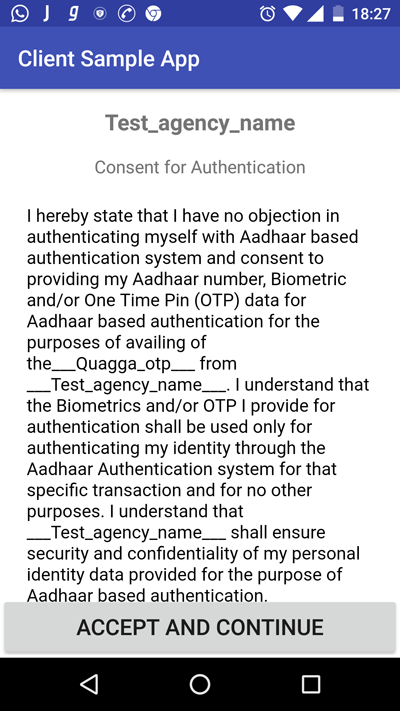
B. After you press “ACCEPT AND CONTINUE” button;if the Aadhaar number is correct& mobile number is registered;then One Time Password i.e. OTP will be sent on Aadhaar registered mobile number.
C. Enter the OTP sent on Aadhaar registered mobile number.
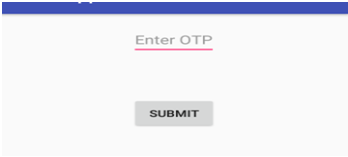
D. If the OTP entered is correct then depending on the request type theEkyc/Auth information will be passed in String format:
• If the request type is OTP_EKYCthen success response will be:
KYC Success Response JSON:
{
   User_Id: ‘OUR SYSTEM USER ID',
   Aadhar_Id: '655XXXXXXXXX’, //Resident’s Aadhaar Number
   e_Kyc: {
             status: 'y’, //eKYC status y/n
             Description: 'Authenticated Successfully’, //Description from Aadhaar
             Code: '124be446983XXXXXXXXXXXXXXX’, //Unique EKYC/AUTH code from UIDAI - used for any
             Audit purposes.
             RRN: '6345XXXXXXXX’, //Unique signature from our licensee - for quick tracking of request further
             down
             Poi: { //proof of identity
                    CONFIDENTIAL _4
                    Name: ‘RESIDENT NAME HERE’, //Name of Resident
                    Dob: ‘DD-MM-YYYY’,
                    Gender: 'M/F',
                    Phone: ‘XXXXXXXXXX’ //if provided by resident to Aadhaar
                  },
             Poa: { //proof of address
                    co: 'S/O: TEST NAME',
                    house: 'house name',
                    street: ’street name',
                    landmark: ’landmark provided to Aadhaar',
                    lc: ‘locality',
                    vtc: ‘name of village/town/city',
                    subdist: ’sub-district',
                    dist: ‘district',
                    state: ’state name',
                    pc: ‘pin code',
                    po: ‘postal code',
                    uidtag: ‘AAPKA AADHAAR',
                    email: ‘email_id_value’ //if provided by resident to Aadhaar
                  },
             Ldata: { //Local language data (optional)
             lang: '',
             Name: '',
             co: '',
             house: '',
             street: '',
             landmark: '',
             loc: '',
             vtc: '',
             subdist: '',
             dist: '',
             state: '',
             pc: '',
             po: '',
             luidtag: ''
         },
      Photo: "base-64-image-data-here"
    },
    transactionId: "QT-6559XXXXXXX-OXXXXXXXX”, //Unique transaction id to our system
    time: "12/10/2016, 12:17:22 PM” //Time when request gets processed by our system
}
• If the request type is OTP_AUTH then success response will be:
AUTH Success Response JSON:
{
    User_Id: ‘OUR SYSTEM USER ID',
    Aadhar_Id: '655XXXXXXXXX’, //Resident’s Aadhaar Number
    e_Kyc: {
                status: 'y’, //eKYC status y/n
                Description: 'Authenticated Successfully’, //Description from Aadhaar
                Code: '124be446983XXXXXXXXXXXXXXX’, //Unique EKYC/AUTH code from UIDAI - used for any
                Audit purposes.
                RRN: '6345XXXXXXXX’, //Unique signature from our licensee - for quick tracking of request further
                Down
            }
    transactionId: "QT-6559XXXXXXX-OXXXXXXXX”, //Unique transaction id to our system
    time: "12/10/2016, 12:17:22 PM” //Time when request gets processed by our system
}
• Irrespective or request type error response will be in the following format:
Error Response JSON:
{ "statusCode": 400, //ERROR CODE FROM SERVICE
  "errors": [ //In case of multiple errors, check this for multiple messages.
    { "statusCode" : 400,
      "error" : "Bad Request",
      "message" : "OTP validation failed"
    } ],
  "message" : "OTP validation failed",
  "resultCode": "400", //ERROR CODE FROM UIDAI
  "Code": "2ecd287d9f774b4bbe7de701263e7a92",
  "RRN": "704418326186",
  "info": "02{4a8196a9003e0b9f7b3c7ce1facfa3d801ac3d3f27a64ea0c2c302574d3dd931,0000000000000000000000000000000000000000000000000000000000000000,0100000200000000,1.0,20170213182220,0,0,0,1.6,c9d33ee5492c46b0a21857d003c758b0fceeb3ef3750293bfbb600aea80ee2cf,411a1ec545675a21b8898ba2c439341b51abfb62246db58f1b4acc1dcf03836c,0000892001,G,17.387|78.491|0.0,NA,NA,NA,NA,NA,NA,NA,NA,NA,NA,efa1f375d76194fa51a3556a97e641e61685f914d446979da50a551a4333ffd7}"
}
6. Running the ‘.aar’ File for FingerPrint In Your App
A. After successful build and run; by providing resident’s aadhaar number, User will land into “Consent for Authentication” form.
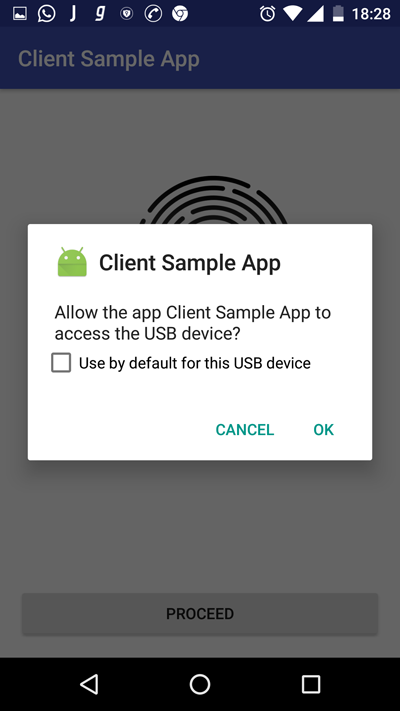
B. After you press “ACCEPT AND CONTINUE” button; plug in the biometric device. And grant USB device the access permission.
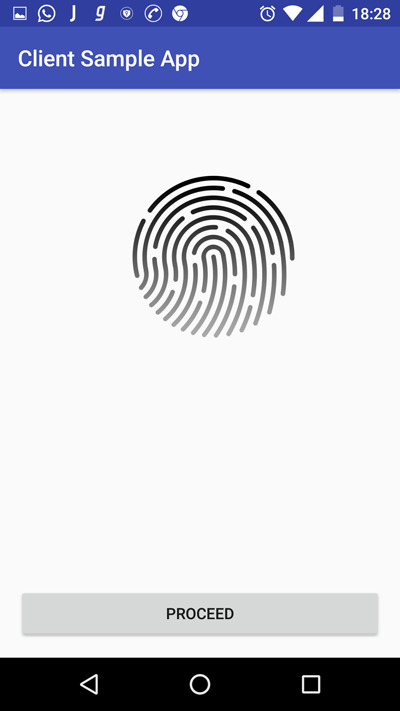
C. Press “Proceed” button; and keep any of the resident’s/customer’s finger on the biometric device.
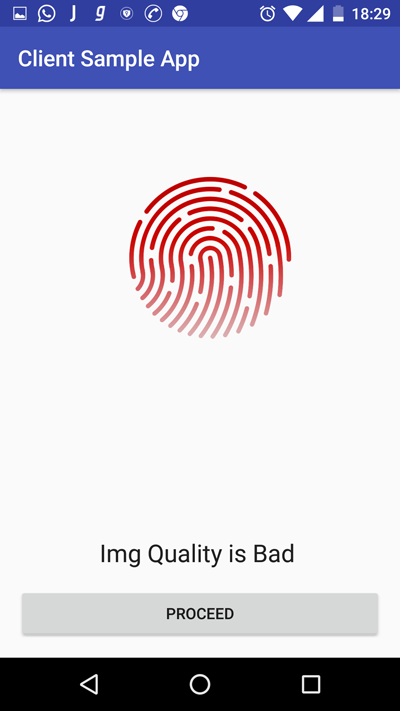
D. If the image quality is bad. Please try again.
E. If the image quality is good eKYC/Auth information will be passed in string format :
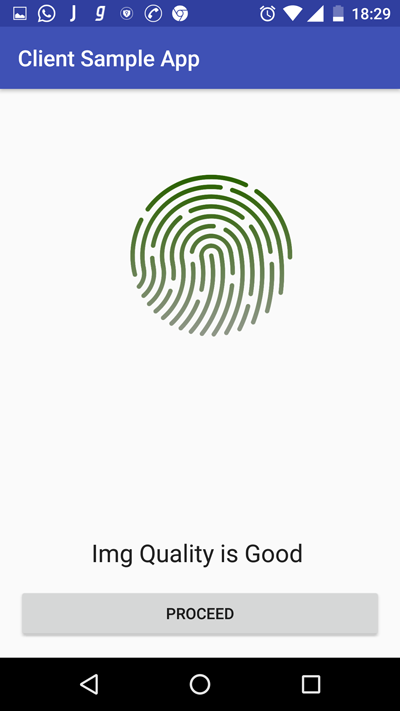
Note: In order to get a good quality score place the finger properly, such that thequality acquired by the biometric device will be greater than 75.
• If the request type is FINGER_EKYCthen success response will be:
KYC Success Response:
{
    User_Id: ‘OUR SYSTEM USER ID',
    Aadhar_Id: '655XXXXXXXXX’, //Resident’s Aadhaar Number
    e_Kyc:
        {
            status: 'y’, //eKYC status y/n
            Description: 'Authenticated Successfully’, //Description from Aadhaar
            Code: '124be446983XXXXXXXXXXXXXXX’, //Unique EKYC/AUTH code from UIDAI - used for any
            Audit purposes.
            RRN: '6345XXXXXXXX’, //Unique signature from our licensee - for quick tracking of request further
            down
            Poi:
                { //proof of identity
                    CONFIDENTIAL _4
                    Name: ‘RESIDENT NAME HERE’, //Name of Resident
                    Dob: ‘DD-MM-YYYY’,
                    Gender: 'M/F',
                    Phone: ‘XXXXXXXXXX’ //if provided by resident to Aadhaar
                },
            Poa:
                {//proof of address
                    co: 'S/O: TEST NAME',
                    house: 'house name',
                    street: ’street name',
                    landmark: ’landmark provided to Aadhaar',
                    lc: ‘locality',
                    vtc: ‘name of village/town/city',
                    subdist: ’sub-district',
                    dist: ‘district',
                    state: ’state name',
                    pc: ‘pin code',
                    po: ‘postal code',
                    uidtag: ‘AAPKA AADHAAR',
                    email: ‘email_id_value’ //if provided by resident to Aadhaar
                },
            Ldata:
                { //Local language data (optional)
                    lang: '',
                    Name: '',
                    co: '',
                    house: '',
                    street: '',
                    landmark: '',
                    loc: '',
                    vtc: '',
                    subdist: '',
                    dist: '',
                    state: '',
                    pc: '',
                    po: '',
                    uidtag: ''
                },
            Photo: "base-64-image-data-here"
        },
    transactionId: "QT-6559XXXXXXX-OXXXXXXXX”, //Unique transaction id to our system
    time: "12/10/2016, 12:17:22 PM” //Time when request gets processed by our system
}
• If the request type is FINGER_AUTHthen success response will be:
AUTH Success Response:
{
    User_Id: ‘OUR SYSTEM USER ID',
    Aadhar_Id: '655XXXXXXXXX’, //Resident’s Aadhaar Number
    e_Kyc:
        {
            status: 'y’, //eKYC status y/n
            Description: 'Authenticated Successfully’, //Description from Aadhaar
            Code: '124be446983XXXXXXXXXXXXXXX’, //Unique EKYC/AUTH code from UIDAI - used for any
            Audit purposes.
            RRN: '6345XXXXXXXX’, //Unique signature from our licensee - for quick tracking of request further
            Down
        }
    transactionId: "QT-6559XXXXXXX-OXXXXXXXX”, //Unique transaction id to our system
    time: "12/10/2016, 12:17:22 PM” //Time when request gets processed by our system
}
• Irrespective or request type error response will be in the following format:
Error Response JSON:
{ "statusCode": 400, //ERROR CODE FROM SERVICE
  "errors": [ //In case of multiple errors, check this for multiple messages.
    { "statusCode" : 400,
      "error" : "Bad Request",
      "message" : "OTP validation failed"
    } ],
  "message" : "OTP validation failed",
  "resultCode": "400", //ERROR CODE FROM UIDAI
  "Code": "2ecd287d9f774b4bbe7de701263e7a92",
  "RRN": "704418326186",
  "info": "02{4a8196a9003e0b9f7b3c7ce1facfa3d801ac3d3f27a64ea0c2c302574d3dd931,0000000000000000000000000000000000000000000000000000000000000000,0100000200000000,1.0,20170213182220,0,0,0,1.6,c9d33ee5492c46b0a21857d003c758b0fceeb3ef3750293bfbb600aea80ee2cf,411a1ec545675a21b8898ba2c439341b51abfb62246db58f1b4acc1dcf03836c,0000892001,G,17.387|78.491|0.0,NA,NA,NA,NA,NA,NA,NA,NA,NA,NA,efa1f375d76194fa51a3556a97e641e61685f914d446979da50a551a4333ffd7}"
}
Supported Fingerprint Devices
1. Secugen Pro 20

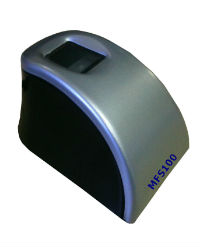
2. Mantratech MFS 100